 Helen Casabona
NEXTSTEP In Focus, Summer/Fall 1994 (Volume 4, Issues 3 and 4).
Copyright ©1994 by NeXT Computer, Inc. All Rights Reserved.
Release 3.3:
What's New for Users
Helen Casabona
It's the customer release. That is, we asked you what more you wanted from NEXTSTEP, we created a release to give it to you, and now it's time for you to enjoy the results. How'd we do? I suggest you get out your wish list and start checking things off.
This One's for You!
Last year NeXT Marketing asked you, our customers, what you wanted in Release 3.3. What did you like about NEXTSTEP? What didn't you like? What else could NEXTSTEP do for you? The Publications group sent out surveys to customers across the country. We were dying to know: What works for our customers? What doesn't?
Well, your wish was our command, and Release 3.3 is here to prove it. Here's a peek at just some of what the new release offers. You can get the full scoop in the Release Notes book that comes with the software.
More Drivers!
When the NeXT Sales group addressed staffers at a company gathering earlier this year, they said that customers wanted three things: drivers, drivers, and more drivers. And boy did staffers deliver. NEXTSTEP Release 3.3 comes bundled with over 50 device drivers that support all kinds of SCSI, display, and network adapters, plus lots of other devices. That's way too many to list here, so see the Hardware Compatibility Guide for details on which devices are supported. This guide is available from NeXTanswers. (See "Tips & Techniques" for details on NeXTanswers.)
Battery-Powered NEXTSTEP
Another holiday season is here and you face yet another family visit without your NEXTSTEP computer. Well good news. This year, you can run NEXTSTEP on your portable laptop and take it home with you.
By using power-saving features on computers that support the Advanced Power Management (APM) BIOS, Release 3.3 runs efficiently on some portable and energy-efficient desktop computers. The APM BIOS on your computer must support 32-bit protected mode access.
Read All About It
The NeXT User Publications group has also been busy. Two of the hottest requests from customers were for a learning tool for beginners and a compilation of power tips. So in addition to the NEXTSTEP User's Guide, Installing and Configuring, and (for upgraders) the Upgrading book that come with the NEXTSTEP CD-ROM, we've got two brand new books for users: Quick Start and Power Tips.
Remember that you can order any NeXT documentation by calling 1-800-848-NeXT.
Quick Start: a launching pad for beginners
Quick Start is an introduction to using NEXTSTEP that gives step-by-step instructions for doing the basics like running applications and working with files. Beginners can sit down with this book and get up to speed quickly. This book comes with new copies of NEXTSTEP.
Power Tips: You'll read it front to back
Finally, a book you'll read because you want to, not because you have to. Power Tips is the quick reference to shortcuts and tips for using NEXTSTEP that you've been waiting for. These are tips like covering the dock, creating your own folder icons, reordering windows by typing, and a lot of others we guarantee you don't know about. Power Tips has a roadmap to other NEXTSTEP documentation and it gives you all the phone numbers, e-mail, ftp, and regular mail addresses you'll need to contact NEXT for any service. The book comes with new copies of NEXTSTEP and with upgrades.
Teasers from the New Power Tips Book
Release 3.3 offers several new shortcuts and tricks that help you work more quickly and easily, particularly in Mail. All these new tips, plus existing ones you may not know about, are in the Power Tips book that comes with the Release 3.3 NEXTSTEP CD-ROM.
Here are some teasers from the Power Tips book:
 Organize mailboxes in folders
When you create a new mailbox, you can create a folder to keep it in, just like you create folders when saving a file with the Save panel. Just type a pathname in the Mailboxes panel that includes the folder's name and click New. For example, type Catalogs/Fall to create a folder named Catalogs that contains a new mailbox named Fall. Resize the Mailboxes panel wider and see two browser columns.
Drag a file while it's open
Don't bother closing a file to drag it somewhere. Just save changes and Alternate-drag its window's miniaturize button. An icon appears that you can drag to put that file on the File Viewer's shelf, insert it in a Mail Compose window, copy it into a folder in the File Viewer, and more. The original remains in its same location.
Delete a message without opening the next
You probably already know that you can Control-click a message summary to select the message without opening it. In Release 3.3, you can Control-click the Delete button to delete the message without opening the next message.
Search for an unread mesage
Click Summaries in Mail's Find panel. Then type a bullet in the Find field--by typing Alternate-7-- and click Find. Mail finds unread messages marked with a shaded circle. This tip is particularly handy if you use Mail's new Mark as Unread command to add the shaded circle to messages you've opened but haven't had a chance to read.
Use Escape completion to type addresses
No more typing out lengthy addresses in Compose window fields. In Release 3.3, you can type the first few characters of any address that's in your Addresses panel and press Escape. Mail fills in the rest with a match from the Addresses panel. Keep pressing Escape to cycle through other addresses that begin with the same characters. This works in the Addresses and Send Options panels, too.
Expanded on-line help
We like your on-line help but give us more. This is what you told us, so we expanded several
applications' help to contain all the information from the printed User's Guide. There's also a new "Power Tips" topic containing tips from the Power Tips book. Choose Help from the Info menu and check it out!
The Configure application now has on-line help, too (in English only). You can use it when you first install NEXTSTEP and later if you reconfigure your computer or any of its devices.
New Tools for System Administrators in NEXTSTEP 3.3
A lot of the work for NEXTSTEP 3.3 went into enhancing network and system administration tools. Bugs were fixed, new applications were developed, and documentation was updated--including man pages! Here are some highlights.
NetInfo
NetInfo internals have been newly improved. For example, clone servers check the master database to ensure correct configuration, writing errors to syslog. The format of syslog is also more readable. To improve performance, especially in wide-area networks, NetInfo now prefers binding to the local host first, if possible, then servers on the subnet, then all parent servers. NetInfo client processes detect rogue servers and avoid binding or rebind to a valid parent server. The lookupd process has improved logging and saves its PID to /etc/lookupd.pid. The nibindd process now allows remote operations, including creating and deleting clone servers; nibindd saves its PID to /etc/nibindd.pid. NetInfo can store DNS resolver configuration information.
Furthermore, the niutil utility has new command-line options. There are three new command-line utilities, too: nigrep to search for regular expressions in NetInfo, nifind to search for directories with given properties, and nireport to produce a list of properties.
The Manager applications
NetInfoManager now provides an Open Parent command as a convenience. The Servers command displays a list of all hosts listed in the /machines directory of the current domain. The Restart command restarts all NetInfo servers on a particular host. A Find panel lets you search for regular expressions in multiple domains. The domain browser lets you set a preference to show directories without subdirectories, choose to have directory ID numbers displayed, and present either browser or table view. You can save and restore a database to and from a backup file. You can merge two NetInfo hierarchies by making a domain in one hierarchy the parent of the root domain of the other hierarchy.
SimpleNetworkStarter (SNS) automatically makes backups of /etc/netinfo directories as well as /etc/hostconfig files, checks the system and network configuration on startup, and logs its activities, which you can inspect on the fly using its Log View or after the fact in the /usr/adm/SNS.log file. You can use SNS to undo or alter existing configurations and to configure new NetInfo clone servers on new subnets.
UserManager now lets you open multiple windows to work on various individual user accounts or groups. It supports user templates, letting you set up variations to suit classes of users, and you can add language-specific resources, as well. UserManager keeps a log in /usr/adm/nu.log. UserManager provides bulk user and bulk group creation and deletion panels, letting you set up multiple users and groups in the same operation. You can set up default user and group parameters for each NetInfo domain, including starting values for UIDs and GIDs, a shell, template, language, and more. UserManager supports programming hooks, mainly to incorporate shell script activation at various stages of the process of working with users and groups, letting you customize UserManager's operation.
Installation and upgrading
We've made big strides on this front. The Installer application now supports installation of language-specific components of a package rather than requiring installation of the entire package.
The RemoteUpgrade utility lets you upgrade multiple computers across a network without having to run the Upgrader application on each computer, with the limitation that the target computers must be of the same architecture. (You can't run the RemoteUpgrade utility on an Intel-compatible computer to upgrade a NeXT computer.)
The NetInstallHelper lets you set up computers to provide NetInstall services, name target computers on which you want to install NEXTSTEP, and create the necessary NetInstall floppy disks that are required to boot the target computers from the network.
Terminal and loginwindow
The Terminal application now works with other applications, so that a user of another application can invoke a Terminal window and run shell commands. Terminal accepts drag and drop colors to affect reverse video and other effects. If Terminal is hidden or its windows miniaturized, output text not viewed is marked as such. A process can set the title bar of its Terminal window. Other improvements include a variety of keyboard enhancements, smooth VT100 mode scrolling, environment flags, and customization for opening new shell windows.
The loginwindow now permits user customization of authentication, user interface, and screen
saving. Other new loginwindow features include automatic login for usernames with no password set, automatic defaults for the root and me accounts based on language, and the ability to absorb the first event to clear a screensaver without passing it to the current application.
Other improvements
Workspace ManagerTM can automatically log out inactive users, permit user selection of floppy
densities on computers without autosensing capabilities, and warn users of low disk space.
Preferences' new features include improved password changing, smart module loading, more flexible menu location, better control over sound and paper size, and a new API letting the user define some attributes of a module at startup.
The Keyboard application is now localized and also supports assignment of key sequences to individual keys.
The DOS file system support now permits reading and writing removable DOS hard disk drives.
Documentation
The on-line version of the NEXTSTEP System Administration book has been updated to
exercise new features of NEXTSTEP Release 3.3 and to fix reported bugs in the text. (There's no printed version this time around.) You'll find this book in /NextLibrary/Documentation/NextAdmin. Some points of special interest:
|
Chapter 1 has updated explanations of NetInfo rudiments-the domain hierarchy, NetInfo servers, and network hardware. |
|
Chapter 2 describes the new features of SimpleNetworkStarter and UserManager. |
|
Chapter 3 has updates of NetInfo features, including additional information on Netinfo servers and new NetInfoManager features. |
|
Chapter 5 boasts an extensive discussion of new UserManager features. |
|
Chapter 9 updates discussions of the startup and shutdown processes to match NEXTSTEP Release 3.3 and to include Intel-specific details. |
|
Chapter 10 has simplified examples showing how to alter the servers properties in various subdirectories of the /machines directory to modify NetInfo domain relationships. |
|
Appendix D documents the new map lookup capability in configuration files. |
|
Appendix H lists favorite books on UNIX, networking, and system administration issues. |
|
A new appendix contains complete documentation for the Terminal application. |
Also, the 3.3 Release Notes provide a condensed, easy-to-find discussion of new features of the Manager applications. These release notes reside in /NextLibrary/Documentation/NextAdmin. Refer to them for details of new features, bug fixes, and other Release 3.3 improvements of NetInfo, the NextAdmin Manager applications, and command line utilities.--James Stockford
On the International Front
The NeXT keyboard arrangement is now available for lots of languages. This is the arrangement that provides an additional Command and Alternate key, and power, brightness, and volume
keys. In addition to the NeXTUSA arrangement, you can choose from arrangements like NeXTFrançais, NeXTDeutsch, or NeXTItaliano, to name just a few. (You choose a keyboard arrangement using the Preferences application, no matter what keyboard you're actually using.)
Like previous releases, Release 3.3 essential software is available in French, German, Italian, Spanish, and Swedish. Several demo applications are now available in these languages, too, including Keyboard, Draw, and (most important!) BoinkOut.
Keep an Eye on Disk Space
Release 3.3 has a number of safeguards against running out of disk space. The Workspace Manager warns you when available space is low on your startup disk. You get the first warning when this space falls below 10 megabytes and another warning at 2 megabytes.
You can monitor how much disk space your Mail messages take up, too. Figures 1 and 2 show what we mean.
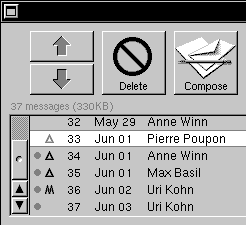

Figure 1: A new Show Sizes command displays the total number of messages in the mailbox and their total sizes
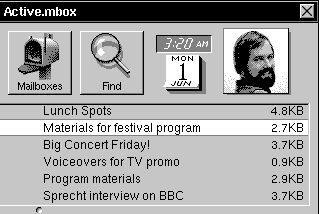
Figure 2: You also see the size of each individual message, including any files or other attachments in it
If you've ever sent out a 3-megabyte image of your dog to everyone in the department and then wondered why the system administrator is giving you dirty looks, here's a new feature for you: Set a size limit for Mail messages you send and, if you try to deliver one that exceeds this limit, Mail issues a polite reminder. You can still send the message if you want.
And Speaking of Mail ...
We slipped some extra vitamins into NeXT engineer Lennart Lovstrand's cappuccino one morning and he started cranking out features for Mail that you'll never want to be without!
A new icon
The first thing you'll notice about Release 3.3 Mail is that its icon displays the number of unread messages in your Active mailbox.

More powerful searching
In Release 3.3, you can search for messages by content as well as by text in its summary. You can also focus on a subset of messages in a mailbox so that all other messages are temporarily hidden. Think of the implications for when you do a Find All search and want to open one message Mail finds without deselecting and losing track of the others: Check out Figure 3.
Mail supports MIME
Mail now supports the Multipurpose Internet Mail Extensions (MIME) standard so you can send formatted messages with graphics, sound, and file attachments to people who don't have NEXTSTEP. Just select MIME in the Compose window and create your message. When someone sends you a MIME message, you open it just like any other message.
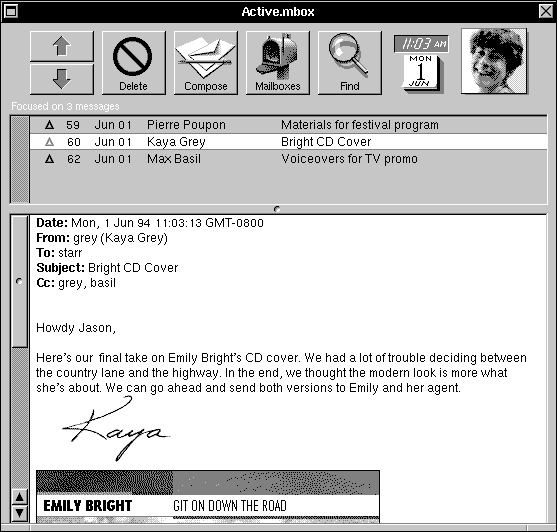
Figure 3: Select the messages you want to focus on, for example, by doing a Find All search. Then choose the Focus command and all other messages are temporarily hidden. You can open one without losing track of
these others.
If your recipient doesn't have NEXTSTEP or MIME mail, you can still exchange file attachments. Drag the attachment into a Compose window set for Plain Text. Mail encodes
the message using the UNIX uuencode command. Recipients can decode the message with the uudecode command. When you receive an encoded message, you decode it by choosing Decode Foreign Attachment.
Keep track of deleted messages
The Undelete command is great for retrieving deleted messages. But it only restores messages one at a time in the order you deleted them. Wouldn't it be nice to display deleted messages and
go straight to the one you want to undelete? Lennart L. thought so, and in Release 3.3, he "made
it so."
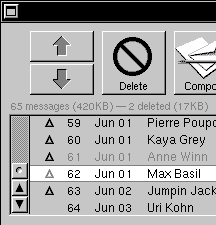
Figure 4: Choose Show Deleted to display each deleted message as a dimmed summary. Open the message and even see how much disk space it takes up. Undelete it by selecting it and choosing the Undelete command.
Wait, There's More ...
... printing Mail messages in bulk, saving a draft of a message you're still composing, using printers with an HP JetDirect network interface, setting colors in Terminal windows, and a lot more but I seem to have run out of roo ...
Helen Casabona is a member of the NeXT User Publications group. She's authored such works as the internationally acclaimed NEXTSTEP User's Guide, on-line help, and the new Power Tips book.
_________________________________________________________________________________
| Next Article | NeXTanswer #1955 Searching NetInfo |
| Previous article | NeXTanswer #1951 One PC, More Than One OS? |
| Table of contents | http://www.next.com/HotNews/Journal/InFocus/Summer1994/ContentsSummer1994.html |