| support bulletin | volume 2, issue 3 | fall 1992 |
new options in printing
by Dave Cottle
When NeXT was planning for NeXTSTEP Release 3, we didn't forget printing. For starters, Release 3 offers support for our new bubble-jet printer, the NeXT Color Printer. PrintManager now provides access to a much wider selection of printer types, including two popular dot-matrix printers. And Release 3 allows you to share printers through AppleTalk and Novell NetWare. Here's a rundown of the specifics.
tiny bubbles, low-cost color
In case you haven't already heard, the new NeXT Color Printer (part number N2004 U.S., N2005 Europe) takes advantage of the latest bubble-jet technology to provide high-quality, low-cost color output. This printer's features include 360 x 360 dot-per-inch (dpi) resolution; variable paper size, up to 11-inch x 17-inch and including 3A; four individually interchangeable ink cartridges; and self-cleaning print heads. You use PrintManager to install the color printer, just as you would any other printer.
Users can help maintain this printer by replacing ink cartridges, keeping the platen and printer cover clean, and executing the head cleaning routines. Be warned, though, that the ink will permanently stain clothing and that the print heads shouldn't be touched (replacement of these requires a qualified service technician). You can find more information in the NeXT Color Printer Owner's Guide. Authorized Service Providers will receive a copy of the NeXT Color Printer Service Manual.

yes, Virginia, you can use that other printer
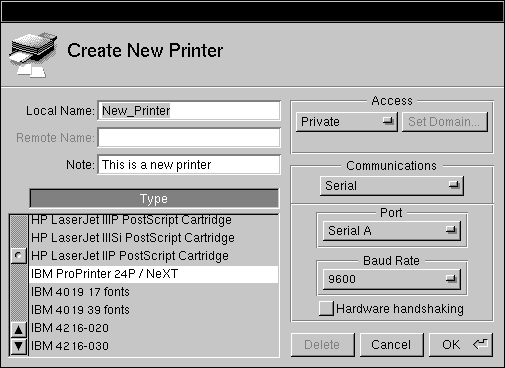
In Release 3, you use the familiar PrintManager application located in /NextApps to install and configure printers just as you always have. Now, however, clicking the Create button brings up a Configure panel containing a considerably longer list of Printer Type choices than in Release 2. In addition to the wide selection of PostScript printers, you can choose between two popular dot-matrix printers-the Epson LQ510 and the IBM ProPrinter 24P. These are indicated by / NeXT at the end of the type name, as shown in figure 1.
figure 1: new printer types
What if you have a different dot-matrix printer? Check the printer manual to see if it has an emulation mode for one of the supported printers.
If you're using a dot-matrix printer that has a roller or pins for feeding paper, you'll need to be careful about positioning the print head and paper accurately. Some adjustments may be necessary to make sure the print rectangle (the area containing the printed image) is centered on the page. See your printer manual for instructions on how to make adjustments.
In addition to the local printer options, a new pop-up list in the Create New Printer panel allows you to set up access to printers on an AppleTalk network. You use a separate application, NetWareManager, to set up access to printers on a Novell NetWare network. For more information about these new network options, see ``inroads in connectivity'' on page 21.
PPD files supported
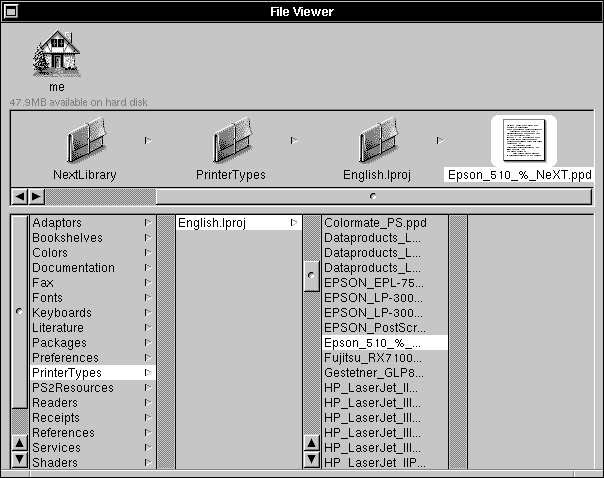
With Release 3, NeXT now supports Adobe's PostScript Printer Definition (PPD) files for defining printer attributes. The list of printer types shown in PrintManager is compiled from all the PPD files it can find. They live under PrinterTypes in the library directories /NextLibrary, /LocalLibrary, and ~/Library. Because of localization, you'll actually find them under the appropriate language project directory (/NextLibrary/PrinterTypes/English.lproj, for example), as shown in figure 2.
figure 2: the PrinterTypes directory
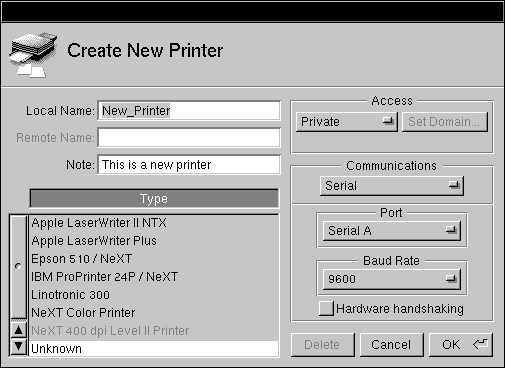
Dozens of PPD files are provided with the extended release. On the base release, only a subset is installed in /NextLibrary, so the Create New Printer panel lists only eight printer types, as shown in figure 3.
figure 3: printer types in the base release
If you want to configure a printer that's not included in the base release, simply copy the appropriate PPD file from the Release 3 CD-ROM onto your hard disk (in /LocalLibrary/PrinterTypes). If you acquire a new printer that comes with its own PPD file, you'll need to install the file in a similar location and name it appropriately.
The name of a PPD file matches the value of the *ModelName variable, as defined in the file, and must end with .ppd. Spaces are replaced with underscores (_), and slashes (/) with percent (%) symbols. For example, the PPD file for the IBM ProPrinter 24P / NeXT is IBM_ProPrinter_24P_%_NeXT.ppd.
Once the PPD file is in place, the next time you start up PrintManager, it displays the new printer type in its configuration panel.
what's in the PPD files
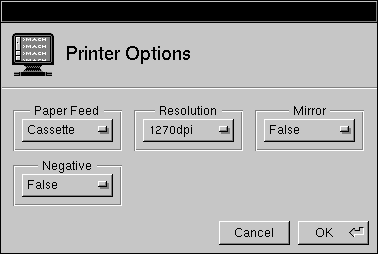
Each PPD file contains fragments of PostScript code that describe individual printer properties. For example, a PPD file might contain information about page sizes, resolution choices, available paper trays, color, PostScript level (I or II), separation of halftones, and so on. The Print panel reads these files and makes printer-specific choices available through the Options button (see figure 4).
figure 4: choosing printer options
new NetInfo subdirectories
When you use NetInfoManager to look at the /printers NetInfo directory, you'll notice that the individual printer directories have sprouted subdirectories. New additions include Admin, Comm, and Device (the NeXT 400 dpi Laser Printer doesn't include a Comm directory). The Admin directory contains administrative information, such as whether a cover page will be printed with print jobs (for details, see ``the Admin directory'' on page 35). The Comm directory contains properties describing the communications port, baud rate, and type of communication (usually serial). The Device directory provides information about the printer driver, such as escape codes for dot-matrix printers or the manual feed timeout for a NeXT 400 dpi Laser Printer. PrintManager provides information for these directories during the configuration process.
With the exception of Admin, you shouldn't ever need to concern yourself with these NetInfo directories. Use PrintManager to install and export your printers, and everything just works. For example, using nidump to extract a printer entry from a local domain and then niload to copy it into another domain will leave you without the subdirectories. Again, using PrintManager to export the printer will make sure that everything works.
more choices than ever
Printing in Release 3 is all about flexibility-a wider choice of printer types, support for PPD files, and a new color printer. With all these choices, you're bound to find something to print with. If you want more information about printing issues, see the NeXT 400 dpi Laser Printer Owner's Guide, NeXT Color Printer Owner's Guide, NeXT Color Printer Service Manual, User's Guide, and NeXTSTEP Network and System Administration manual.
modifying PPD files
The descriptions contained in the PPD files should be sufficient for just about anyone. However, if you're a whiz at PostScript and are convinced you need to change something (a specialized halftone description, perhaps), you can add your own customizations. Be sure you know what you're doing, be very careful, and don't modify the original PPD file. Instead, create your own file containing the descriptions you want and use an include statement at the bottom to reference the original PPD file. Install your new file in an appropriate Library directory under PrinterTypes/Custom.
You'll need to modify the NetInfo database to use the new file, after you've installed the printer with PrintManager. Using NetInfoManager, open the appropriate domain and find the /printers subdirectory for the printer. Double-click the directory to open the property editor and then add a new property. The key should be ppdname, and the value should be the name of your new PPD file (there's no need for a full pathname because it's installed under Custom).
the Admin directory
Here's a description of the properties you can define in the Admin NetInfo directory to control features for a specific printer:
CoverSheet--If the value of this property is 1, a cover sheet is printed with each print job that identifies the job and the user. If the value is 0, no cover sheet is printed.
CoverSheetPath--The values associated with this property identify the file to be used as the cover sheet template. The default file is /usr/lib/NextPrinter/Server/DefaultPrintCover.ps. This file contains variables that will be replaced with the appropriate values: $$DATE$$, $$HOST$$, $$PRINTER$$, $$TITLE$$, and $$USER$$.
InitFiles--The values associated with this property identify PostScript files to be downloaded to the printer before each print job. These files can be used to set up site-specific features, such as printing special page labels or setting up a custom PostScript environment.
ReversePageOrder--The value of this property determines the order of printed pages. Possible values are:
 |
0-Use the page order defined in the PPD file for this printer (the default). |
|
1-Always print the final job page first. |
|
2-Always print the first job page first. |
Note that job-page order and page order within a file aren't necessarily the same. You should need to modify this property only in special cases in which the print jobs are stacked backward from the order you want.