taking your network home
by John Landwehr
After spending a rough day in the computer lab, you decide to head home and continue working there. At home, you unpack a stack of floppy disks and copy the files you need. An hour later, you realize you need a file you forgot to copy from the lab network. Wouldn't it be nice not to have to go back? These days, chances are you won't-at least, not if you have your home machine connected to the lab network.
Fortunately, Transmission Control Protocol/Internet Protocol (TCP/IP) links now make remote network connectivity possible at low cost. Serial line connections offer possibilities ranging from home computing to having local networks connected across the world by means of the Serial Line Interface Protocol (SLIP) or the Point-to-Point Protocol (PPP). SLIP caught on in the early 1980s as an easy, reliable way to use serial lines to connect TCP/IP hosts and routers. PPP was developed in the late 1980s as an Internet standard to be used as a functional replacement for SLIP. (For more information about these protocols, see "dialing up for network service" in volume 2, issue 1 of the support bulletin.)
The biggest advantage of using these protocols is actually being a node of a remote network. When you want access to resources not available on your home machine, your computer will act as if it's in the computer lab using the network. You're no longer limited to simply transferring the files using a modem and terminal software or only using the computing power of the distant machine.
what's going on
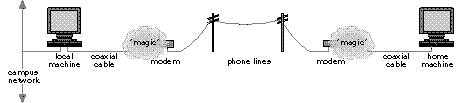
Picture Ethernet coaxial cable coming out of your home machine and magically connecting to your modem. The home modem is connected through the public telephone network to the local modem, which magically connects back to Ethernet cable, as shown in figure 1.
figure 1: connecting a home computer to a network
In reality, the magic is done in the software of both the local and home machines. Each machine is configured to allow serial network interfaces in addition to the standard Ethernet port. Using the NeXT computer's serial ports, it's possible to have three network ports (two SLIP or PPP and one standard Ethernet). At this point, all standard network configuration commands can be used to route the traffic to the proper destinations.
what you need
Unlike other networking options that involve routers, repeaters, hubs, and expensive cabling, serial line protocols require only inexpensive serial cables or modems and phone lines that connect the machines. The easiest configuration involves connecting a modem to an existing networked machine and a modem to a home machine. You can use a standard telephone line, which can be shared for voice and fax uses.
how it's done
For the network to function, software is installed on two machines connected via modems or straight serial lines. Either machine can be standalone or networked. When the network machine looks for a machine not available at the local site, it starts a daemon for the serial line protocol. The daemon then checks to see if a connection already exists. If it doesn't, the daemon instructs the modem to dial the remote machine, log in, and run its daemon. Once connected, both machines appear to be on the same network.
Any time you connect a home machine to a network, it's important to decide which calls which. The home machine should call the lab machine whenever it requests the lab network. This one-way initiation means that the modem connected to the lab machine must always be ready to answer a call. If the home machine is using the only phone line available at home, it isn't practical for the lab to call home looking for the computer every time someone requests access to the home machine. The lab machine will accept only incoming calls, and the home machine will perform only outgoing calls.
One of the biggest advantages of networking software is transparent access to the network. There are no additional commands that must be run each time network access is required. When finished with remote network traffic, the software can also save phone charges by bringing the line down automatically. A timeout value can be set to determine how long a delay there should be before the link will be brought down due to lack of network traffic. It's also possible to have no timeout value in a dedicated link situation.
a campus network connection
Most universities already have a strong campus network in place. Typically, they have several options for connecting students and faculty to the campus computing resources. The traditional setup is a modem on a serial port for dialup access. However, it would be unduly expensive for a university to provide a modem and dedicated phone line for each professor and student on campus, not to mention file servers and modems for all the students in dormitories and off campus. The following are some inexpensive alternatives.
connecting through a modem pool
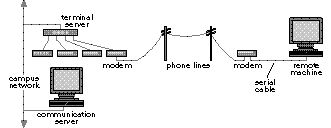
Many universities already have some type of terminal server that connects a pool of modems to any computer on campus, as shown in figure 2. Some terminal servers support SLIP and PPP access directly. However, it is often easier to dedicate one machine on the campus network as a serial line protocol server. This machine should be accessible from the terminal server. The remote machine calls the terminal server, which connects to the communication server and initiates the serial networking daemon. This offers better security in that each user can be assigned an account on the host machine and all traffic can be monitored because it goes through one machine. With a pool of modems available, users dial in and establish a network link with the server, which has access to any other machine on the campus network and often to the Internet. This configuration allows individuals with computers at remote locations to access the campus network.
figure 2: connecting to the network through a modem pool
setting up a dormitory computer lab
It's impractical for universities to invest in networking in every dormitory room or to purchase large numbers of modems. An immediate solution is to provide networking in a small computer lab on the ground floor of a dormitory. Students can take their disks to a convenient location, transfer files, send mail, read news, and then take the information back to their rooms. This allows more students access to the network while reducing the load on the central computing labs, which might be across campus.
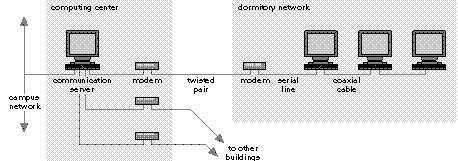
This solution requires connecting the building to the campus network, but dormitories aren't always in the center of campus and are often served only by twisted-pair phone lines. A very low-cost option is to use SLIP or PPP over existing twisted-pair lines from the central computing facility to the building.
The advantage of this setup is that only one machine in a central location is needed to act as a server on the campus network, as shown in figure 3. Each building on campus can connect to this machine and have a separate account for each connection. Each building could use a serial port, or a terminal server could provide multiple serial ports. Each serial port connects via a modem through the existing campus phone network to the building. Each dorm then requires only another modem and the machine running the software connected to the local network.
figure 3: connecting to the network over twisted-pair lines
In this situation, the UNIX multitasking environment of NeXT computers is a great benefit. Only one machine is needed in the central location to provide network access to a number of buildings. Each building then has a small network of machines. With multitasking, it isn't necessary to have a separate machine dedicated to communication services outside the building.
Speed is often an issue with serial connections. It's difficult to reach the same speed as standard Ethernet networks. NeXTSTEP Release 2 supports speeds up to 38,400 bits per second (bps). In a small networking situation, this is plenty of bandwidth for providing many different services to students in each building. Breaking this down, it would appear that, with a single modem, 16 students could have 2400-bps connections. However, because 16 students would probably not use the network simultaneously, each user would experience greater speeds.
University administrators are naturally concerned about cost. Traditional networking strategies involve installing network-specific cabling between each building on campus. Using existing campus wiring can keep installation costs very low. Hardware costs can also be reduced by using high-speed modems and avoiding costly repeaters and multiplexers. A dorm computer lab connected to a campus network using SLIP or PPP would require only the machines for the lab, access to another NeXT machine that's on campus and connected to the campus network, two modems, and existing phone lines.
applications of SLIP and PPP
By far, the commands most frequently used with SLIP and PPP are ftp, telnet, and rlogin. Plenty of bandwidth is available for these services. You can send Simple Mail Transfer Protocol (SMTP) mail or access Network News Transfer Protocol (NNTP) news easily with these protocols. Many users find that remote UseNet news and mail reading are the most important features of remote connections.
With some care, you can use other applications as well. Dialup modem speeds can be limiting on the applications being run. Interactive applications, such as xterm, would require a high-speed modem and might produce some sluggishness in displaying large bitmapped images. It's also possible to use the Network File System (NFS). However, it's very important to use high-speed links to avoid overwhelming the connections and causing timeout errors with programs remotely mounted.
For interactive applications such as telnet, 2400-bps modems are fine. Mail can be sent using any speed modem. However, any mounting of file systems should use modem speeds with actual throughput of greater than 9600 bps, and file system parameters need to be adjusted.
NeXTmail at home
One of the major advantages of using a SLIP or PPP link for electronic mail is to have transparent access to the benefits of NeXTmailTM. In the past, NeXT users not on a network had to use modems with terminal emulation software to view messages in text format while connected to another machine. Now it is possible to send and receive NeXTmail with all attachments and fonts.
With the serial link, sending electronic mail is fairly straightforward. Once a message has been composed and sent, the networking daemon automatically brings up the link and sendmail takes care of the rest. With routing installed properly, you can send mail from your home workstation through the host to any other machine on the Internet with no problems.
Problems can occur, however, when someone tries to reply to your message. If the link is dedicated or happens to be up at the time the message is sent, the home machine will receive the message normally, and NeXTmail will load it normally. But these protocols offer on-demand connections normally initiated by the remote machines. If you send a message and the link isn't up, the message will not be delivered.
One possible solution to this problem is to configure the lab host machine to call out. When a message is received, it will dial up the home computer and send the message out. In this case, you need an additional telephone line because either computer could initiate a connection at any time, and humans won't want to pick up the phone for an annoying screech each time the phone rings.
Another option is to have all mail saved on the lab host machine. The home machine can have its return address configured to be the address of the host machine. Because the host machine is always on the network, mail will always reach it. Now you need a way to transfer the mail to the home machine.
To transfer mail, you can use an ftp script for the home machine to run under cron, the UNIX timed execution facility. At given intervals during the day, the home machine automatically initiates a connection to the lab host machine. The home machine logs into the host machine, transfers the mail file to the home machine, and then deletes the mail on the host machine. In UNIX systems, this involves using a simple shell script that specifies the host, user name, password, and commands to be executed.
NeXT connections to Macintosh and DOS computers
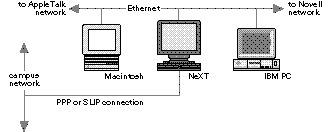
With Release 3, it will be possible to use the NeXT computer to share file and print serving resources in a heterogeneous environment and also act as a network gateway out of the building. As can be seen in figure 4, Apple Macintosh® computers running AppleTalk® and IBM® PCs running Novell NetWare® can be connected together not only in the building but also, through a NeXT computer running PPP or SLIP, to the rest of the campus.
figure 4: connecting a Macintosh and IBM-PC to the network
in the final analysis
Networking is no longer physically limited to stretching expensive network cable. By using existing phone wires, it's possible for individuals in business or on college campuses to connect their machines and receive all of the benefits of the remote network. It's time to think about ways to take your network home.
references
Romkey, J. L. RFC1055: A nonstandard for transmission of IP datagrams over serial lines: SLIP (June 1988), 6 pp.
Perkins, D., and R. Hobby. RFC1171: Point-to-Point Protocol for the transmission of multi-protocol datagrams over Point-to-Point links (July 1990), 48pp.
obtaining RFCs
Most of the written information about TCP/IP and the connected Internet-including its architecture, protocols, and history-can be found in a series of reports known as Request For Comments, or RFCs. The papers range from frivolous documents discussing early network humor to the most up-to-date information on new network technologies. RFCs are available from the Internet Network Information Center (NIC).
 |
Anonymous FTP access is available from nic.ddn.mil. |
|
Electronic mail access is available by mailing service@nic.ddn.mil with a subject line of "RFC index." |