
| support bulletin | volume 3, issue 1 | winter 1993 |
options in e-mail from home
by John S. Karabaic
"How do I send and receive electronic mail from home?" This is probably the number-one question on the interpersonal computing hit parade. Because NeXTTM computers have so thoroughly integrated standard, high-performance networking into the computing experience, there's no simple answer to what seems a simple question.
You should probably start with a few other questions: What kind of interface do you need, a bare-bones UNIX, command line or a full-service NeXTSTEPTM user interface? Do you want access to your files as well as your mail? Are you ready to learn some UNIX commands? Can you or your staff manage a point-to-point remote network to your house via modem, leased line, or Integrated Services Digital Network (ISDN)? How much time, money, and effort are you willing to spend?
This article explores the choices you have in exchanging e-mail from home and gives you a rough idea of the comparative costs and benefits. Then you'll find out more about working with a UNIX dial-in connection and learn some quick-and-dirty tricks in case all you have is a 1200-baud modem, a NeXTstationTM computer, a hotel room phone line, and a rapidly cooling pizza.
making choices
When you decide you want to send and receive e-mail from home, what you may really be asking for is an extension of the office network to your home or hotel room. "Extending the network" can range from dialing in on a modem to having an actual piece of wire strung from your home to the office. The capabilities you can achieve range from just being able to send and receive plain-text mail to exchanging formatted messages and file attachments with the NeXTmailTM application-almost as if you were actually at your office.
The underlying component of your network extension is the medium you'll use to make the connection. The three basic choices are:
|
Regular phone line (often called POTS, for Plain Old Telephone Service) |
|
Leased line |
|
ISDN phone line |
Each medium has its advantages and disadvantages, and the one you choose depends on the capabilities you want and the resources you're willing to expend to gain them. Some choices also require purchasing additional hardware or software.
POTS
The primary advantage of regular phone lines is cost. You already have a phone line at work and another at home, although you might want or need to install an additional line at either location. Add a couple of modems, and you're all set (see figure 1). Your only ongoing costs are the charges for phone calls.
figure 1: connecting with POTS

The primary disadvantage of regular phone lines is speed-the limited bandwidth means a relatively slow connection. For many purposes, though, POTS works just fine.
The capabilities available with a regular phone line run the entire gamut-from plain-text e-mail to "transparent" networking. It all depends on your software. Here's a breakdown of the basic choices:
|
UNIX commands-You use commands such as tip, mail, tar, uuencode, and compress to access and decode mail messages and attachments. |
|
UUCP-You configure your computers to transfer mail between your home and the office. |
|
On-demand TCP/IP (SLIP or PPP)-You set up additional software to provide "transparent" networking over the phone line. |
UNIX commands
When you use modems and POTS to connect to your office network, you log into a character-based session and use UNIX commands to access mail. To send and receive plain-text mail, you use /usr/ucb/mail rather than the NeXTmail application (in /NextApps). Sending and receiving e-mail messages in Rich Text Format (RTF) or with file attachments requires some extra work with additional commands. We'll explore the mechanics of exchanging mail using UNIX commands later in this article.
This arrangement requires no additional software, no setup beyond modifying one or two files on each side of the connection (see NeXTSTEP Network and System Administration), and no costs beyond regular phone charges. However, it does require the most work and knowledge on the part of the user, since everything is done with UNIX commands. For those familiar with UNIX, this arrangement can be just fine. Those with little or no UNIX experience may find it mysterious, but a bit of education can still make this arrangement productive.
For more information, see "working with a dial-in connection" later in this article.
UUCP
UUCP (for UNIX-to-UNIX copy) is most commonly used to transfer mail, though you can also use it to transfer files and to execute commands. Probably the most widely used unattended batch transferfile utility in the world, UUCP is the basis for the global UUCP network.
Setup requires the modification of several files on each side of the connection, as described in Chapter 12 of NeXTSTEP Network and System Administration. You can establish a connection from the command line or automatically, using cron. Then the UUCP files manage the exchange of mail between your home and office.
The advantage of UUCP is that you can use NeXTmail-not UNIX commands-to send and receive mail. A disadvantage is that the mail you send has your home computer's address in its From field (something like earth!john@next.com). To make mail look like it came from the office network (john@next.com, for example), you'll need to make modifications to sendmail configuration files. (For more information about sendmail configuration files, see Appendix D of NeXTSTEP Network and System Administration.)
Because UUCP software is included in NeXTSTEP, you don't have to buy any additional software, and you incur no costs beyond phone charges. UUCP is practically transparent to users, since they use NeXTmail to send and receive mail. If you're willing to learn how to set up and administer UUCP, this can be an excellent choice.
For more information, see NeXTSTEP Network and System Administration; Using UUCP and Usenet and Managing UUCP and Usenet from O'Reilly & Associates; and the UNIX System Administration Handbook by Nemeth, et al. (Detailed references are provided at the end of thisarticle.)
on-demand TCP/IP
SLIP (Serial Line Internet Protocol) and PPP (Point-to-Point Protocol) are software products that provide on-demand TCP/IP (Transmission Control Protocol/Internet Protocol) connections over telephone lines. Once you've configured the SLIP or PPP software, it can make your home machine look like it's directly attached to the office network, with all the services available that you have on the office Ethernet. You can mount remote file systems, execute network commands like ftp or telnet, and use NeXTmail.
However, this kind of dialup service can be frustrating, because while it's transparent, it can be three orders of magnitude slower than the Ethernet. This lack of speed means you probably won't want to mount remote file systems, even though it's technically possible. Be particularly careful of logging into your home computer as a user whose home directory is on the office network. Sending and receiving messages with NeXTmail works fine, but again, the lack of speed can make fetching mail a very long process.
Setting up and maintaining this service may mean that you or your support staff will need to learn more than you'd like about TCP/IP networking. This arrangement requires the purchase of additional software, but no ongoing costs beyond regular phone charges. It also requires additional software configuration on both sides of the connection. It can be frustrating for the user because, although it provides transparent networking, its lack of speed can limit the user to the UNIX command line.
For more information, see "dialing up for network service" in volume 2, issue 1, of the support bulletin and "taking your network home" in volume 2, issue 2; Chapters 10 and 11 of NeXTSTEP Network and System Administration; TCP/IP and NFS: Internetworking in a UNIX Environment; and the UNIX System Administration Handbook by Nemeth, et al.
leased line
A leased line is an expensive, dedicated piece of copper wire running from a wall outlet in one building to a wall outlet in another building across a city, a continent, or a hemisphere. You can lease lines of varying bandwidth (you've probably heard of T1 or fractional T1 links). In general, the higher the bandwidth, the higher the transmission speed possible (from 56 kilobits/second to 1.44 megabits/second). Because a leased line is essentially just a dedicated phone line of increased bandwidth, you can do anything on a leased line you can do with POTS-only faster.
You can connect your computers to a leased line with modems, or for higher speeds, you can use a device such as SnapLink, from Morning Star Technologies (see figure 2). Running SLIP or PPP over such a connection is considerably faster than over a regular phone line. With a bridge or router, you can connect directly from the Ethernet port on you computer to the office network. Such devices are available from Network Applications Technology and Cisco Systems, among others.
figure 2: connecting a leased line
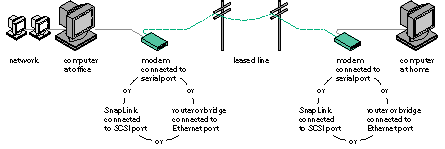
With any of these devices, you can achieve transparent networking with a very close simulation of actually being at the office. However, depending on your leased line's bandwidth, response may be considerably slower than on a computer directly connected to your office Ethernet.
This scheme requires the additional cost of the leased line and possibly additional software and hardware. Depending on the variation you choose, it may require very little education for the user to achieve transparent networking. The primary advantage of a leased line is its speed; the primary disadvantage is its cost. If you can afford it, a leased line can be a perfect solution.
For more information, see the references mentioned for PPP and SLIP.
ISDN phone lines
With NeXTSTEP Release 3 you can use ISDN phone lines to extend your office network to home easily, quickly, and transparently. Simply described as digital telephones, ISDN can provide transmission speeds of up to 128 kilobits/second.
The local and long-distance charges for ISDN calls are usually the same as for POTS, but the initial setup charges and equipment costs are not. In addition to the ISDN phone line, you'll need a network termination device (such as an NT1), a power supply, and a device called the Hayes ISDN Extender for each end of the line (see figure 3). This allows you a connection up to four times faster than a 9600-baud modem.
figure 3: connecting with ISDN
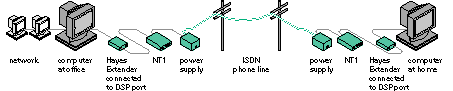
The catch is that most local phone companies don't offer ISDN service yet. Even if yours does, you may have to be within 18,000 feet of a central office (depending on the company) to get the service. This last problem should be solved in the next year or so, as ISDN repeaters go on the market from companies like AT&T and Northern Telecom. In addition, equipment availability and costs vary widely from carrier to carrier, as does ISDN knowledge. Coordinate with your telecommunications department or guru about ISDN availability at work and at home. Your telecom people can save you hours of headaches and buck-passing by well-meaning phone company marketing folks.
So using ISDN requires additional hardware and a special phone line. Additional configuration is necessary, but you use NeXTSTEP applications. For the user, this option can most closely resemble being at the office. Its primary advantages are speed and transparency; its primary disadvantages are cost and limited availability.
For more information, see Chapter 11 in NeXTSTEP Network and System Administration.
recap of connection options
The medium you choose for your connection depends on the capabilities you want to provide, the UNIX sophistication of the user, and the resources you can dedicate to equipment and support. Using a modem over POTS is the least expensive option, but it may require additional maintenance or training. A leased line or ISDN will make life easier for the user, but both can be expensive, and administration can be more involved. ISDN might not even be available yet.
Table 1 summarizes the advantages and disadvantages of each option.
table 1: comparing options for e-mail at home
POTS
setup:
Requires minimal expertise. For UUCP, you need additional administrative knowledge. For SLIP or PPP, you may also need to know about TCP/IP.
resource cost:
Two modems, cables, phone line. Additional setup time for UUCP. SLIP and PPP are additional software products and will probably require additional training.
advantages:
Lowest costs for additional hardware or software. Can be the simplest administratively, depending on the sophistication of the user.
disadvantages:
Slowest connection, making transparent networking iffy at best. User may need to know UNIX commands. UUCP, SLIP, and PPP require additional administrative knowledge.
leased line
setup:
Similar to setting up a node on your network. You may need to learn more than you'd like about TCP/IP and telephony issues such as vendors and tariffs.
resource cost:
Large installation and equipment fee (varies with equipment and carrier). Monthly charges in hundreds or thousands of dollars, depending on distance, bandwidth.
advantages:
Completely transparent and fast.
disadvantages:
Cost for the line and additional training for support staff in TCP/IP and NetInfoTM.
ISDN
setup:
Uses NeXTSTEP applications (in /NextAdmin). You may need to provide your own ISDN expertise.
resource cost:
Network termination devices and Hayes Extenders, plus phone charges.
advantages:
Completely transparent and fast.
disadvantages:
Cost and availability.
working with a dial-in connection
Now we'll return to the bare-bones equipment necessary to dial in and use UNIX commands to send and receive e-mail and extract attachments. You can use a NeXTSTEP computer, a PC or Macintosh, running terminal-emulation software, or even just an ASCII terminal. You'll also need a modem and a phone line, of course.
You can use a variety of terminal-emulation and communications applications to read your mail, but for these instructions we'll assume you're using tip in a Terminal window. You can also use the GNU emacs mail reader (rmail) to send and retrieve mail, or you can find one of many text-based UNIX command-line mail readers that are available for Berkeley UNIX, but we're going to assume that you're using /usr/ucb/mail. In other words, these examples use only the software that comes bundled with NeXTSTEP.
to set up and connect
First you need to set up your hardware and software on both sides of the connection. Here's what you do:
1. Set up a modem on a computer on your office network to receive calls-attach appropriate cables and turn on a getty process for the correct serial port. The procedure is described in NeXTSTEP Network and System Administration.
2. Set up a modem on your home computer, whether NeXTSTEP computer, PC, or ASCII terminal.
3. Configure your terminal-emulation and communications software. For tip, this means modifying the file /etc/remote. See the UNIX manual pages for tip and remote.
4. Call the modem on the network from home, using your favorite communications program.
5. Log in with your login name and password at the UNIX prompt.
Whenever you're going to be reading mail from the command line, you want to be sure that NeXTmail won't interfere by fetching incoming mail messages. It's best to make sure you're not logged into a computer on the office network while you're logging in remotely. Failing that, make sure that NeXTmail isn't running, or that it at least has the New Mail Retrieval preferences option set to Manual.
to read and send plain-text new mail
Once you're logged into a computer on the office network, use mail to read or send plain-text e-mail. If you're not familiar with the program, see the UNIX manual page for mail.
If mail tells you that you don't have any mail messages, and you think you should, your mail spool directory might be something other than the default (/usr/spool/mail). From a computer on the office network you can check NeXTmail preferences to see if the Spool Dir option is set to something else. Remotely, you can use the dread -l command and look for an entry that begins "Mail SpoolDir." If it's not /usr/spool/mail, you'll need to supply a command-line argument to mail to make sure the program functions properly:
 mail -f /my/nonstandard/mail/path
If you normally have your NeXTmail preferences set to archive outgoing mail, you may want to copy yourself on anything you send out. mail doesn't archive things in Outgoing.mbox.
to decode e-mail with Rich Text or file attachments
NeXTmail uses UNIX utilities to encode Rich Text messages and file attachments into a standard format. First, the mail message and any attachments are packed into a single archive file with tar. This file isthen compressed with compress and run through a utility called uuencode, which takes nonprintable and 8-bit ASCII characters andexpands them into 7-bit ASCII characters. Files processed by uuencode are somewhat larger, but they can be safely passed on to older communications links and mailers that choke on anything but
7-bit ASCII.
To unpack a mail message, you just reverse the process, using uudecode, zcat or uncompress, and tar. You can unpack mail messages on the office network and transfer the resulting files home, oryou can transfer mail messages home and then unpack them. A packed message is contained in a single file that's smaller than the unpacked message, soit's faster to transfer messages and then unpack them on your home computer. If you want to transfer only part of the message, or if you don't have access to UNIX commands on your home computer, you'llneed to unpack the message before transferring the components you want.
When you use mail to examine a NeXTmail message with Rich Text or attachments, it looks like very nicely formatted random characters. Here's a sample:
From jwong Sun Oct 25 23:11:29 1992
Return-Path: <jwong>
Received: by next.com (NX5.67c/NX3.0S)
id AA00499; Sun, 25 Oct 92 23:11:24 -0500
Date: Sun, 25 Oct 92 23:11:24 -0500
From: John Wong <jwong>
Message-Id: <9210260411.AA00499@next.com>
Received: by NeXT.Mailer (1.87.1)
Received: by NeXT.Mailer (1.87.1)
To: jwong
Subject: Hey, John
Next-Attachment: .tar.471.Hey__John.attach, 1361, 1/1, 1914, 0
Status: R
begin 666 .tar.471.Hey__John.attach
M'YV0:=R0*8/'A1PZ9@`H7,BPH<.'$"-*G$BQ(HB+-FC0``'@(H@:,6QP]'@1
MQDB2'F>$O%A#Q@T9-FS<N$'CAL<:-V+,Z%BQI\^?0(,*'4JTJ-&C2),J7;IT
M#Y>#9F!P">-F3AJG9MZXH4-'#!LN4<&Z2<,&!)4T;<K,:2'E31NJ._HHX/)6
MSADV,63`F%OWC)R\>[G`"2.'#!<Z>'+8D(HX1@Z]A_'(P(&#,9X9.&A8IE'9
M,L[%D65"1GS#1N7(.#):5@Q#:E@Q4M-(K</&C=8R8.=P!CM&ZIBH(*:X+0-"
M2IHQ:,P2I,,"Q!,V9$`(J4.&3!X7V+G,5:!FC78%<IF4(>(BQXV&`2Z-`(`!
M``,@0)J$<7)&//D<.-!?(L'>/7SY]-E77@[ZE=!?`__-5]]X+L30&D/IF7!@
M@@$RZ&`,$%YRPH3Q*2B@@S)DB`*'`"Y(GH,[+91>"B1Z:"$,-&2H0HL5G@A#
M#1FN0*.)#<)@0X8L[/@A#.>I>$D+0KZ8GY$N)&DC@4:^<"!35%9IY9589JGE
MEEQVZ>678(8IYIADEFGFF6BFJ>::`5A2#0`4`+``A3S&"$";UL`I)YT"XGBG
M)=?H.6>'-;KPXY_8",HG@T6VF8VBA/*X9)O:0%JB@%"VN4U_[T4ZI$/Z_,#I
MHB=B"*$EW(SJJ84AGMJ-JI=:F***EG@#JXLGVDGK-[<6&H.?#+TR2*\\AH2>
M)>`0^V&1#.D#A+(6+LG0(,)`>R*4M(9CK0MZ.?0*(=O*8"JMXH3;:K-!A#NK
M0FV.$ZZN"PTR3+C`LFL).>$>&FPAX3)K;SGA2FNO.>%B:^\YV\X`P['H)#RN
MO>DD?*Z]ZB2\[IUKZ)`PO'^ZDW"]"EU1<7N=QDK>#/K:^T["_BJD#[\DD^H"
M9NBML4/"!O\)S[::'1L/SP\KA$4//$^LD#-P\'QQF_+PS#$`U80`0)`EX^H"
M#2`;18!"51=*0\I_SL-SRP"XTP'/`O])#\\Y`Z"/(=O6L/"I]<0==``YG!WS
MJN2U=*P]<2]MR3UQ<]PF/G&#W&8^<8/=ICYQM]SF/G&GW28_<>?<9C_;+G:L
M/YW?;<D_G1N=GD)[FVSHTI<$T+GAEPC0N>*7#-"YXY=LG;K5,NE70.>67V)`
MYYI?<L"V-\QM)`+(WWU)`LB;?HD"R+.^`/*P,X`\[0T@C[L#R$M^R0/(!P\!
M\L5'L&UE^DFPOO,3K"]]G+L7B@/K%:P/NP7KTW[!^KAKSXBZ)BFR!65K_N&;
#"R@#
`
end
If you want to know how large a message is so you know whether it's feasible to pull over the entire packed message, look at the number after "attach" in the line that begins "Next-Attachment:". In this example, 1361 is the number of characters in the message from the word "begin" through the word "end."
Let's step through extracting a Rich Text message, assuming you've already logged into your network computer from home and are running mail:
1. Save the packed message into a file and then exit mail. Here's an example of saving a message into a file called /tmp/mail (input is in bold; prompts are in italics):
earth> mail
Mail version 5.3 2/18/88. Type ? for help.
"/usr/spool/mail/jwong": 1 message 1 new 0 unread
>1 jwong Sun Oct 25 23:11 40/1791 "Hey, John"
& save 1 /tmp/mail
"/tmp/mail" [New file] 39/1791
& exit
earth>
Be aware that using the quit command eliminates the message fromthe spool directory. If you want to keep the message, use exit instead.
2. If you're going to unpack the message on your home computer, transfer the file /tmp/mail home and perform the next three steps on your home computer. If not, perform the next three steps on the network computer.
3. Use your favorite command-line text editor (like ed, vi, or emacs) to edit the file you've saved the message into (/tmp/mail in the example). First, delete everything before the line that starts with "begin":
begin 666 .tar.471.Hey__John.attach
This line tells uudecode both the file name to place the decoded file in (.tar.471.Hey__John.attach) and the permissions to set on that file once it's done (666). See the UNIX manual page for ls to learn how permission bits translate into those numbers.
Change the long file name (.tar.471.Hey__John.attach) to something easier for uuencode and tar to work with, like mail.tar.Z. Zisthe standard suffix for a compressed file, and .tar is a conventional suffix for a tape archive that's been stuffed into a regular file.
Save the file and exit the editor.
4. Use cd to get to /tmp and then use uudecode to extract the compressed tar file:
earth> ls
console.log mail
earth> uudecode mail
earth> ls
console.log mail mail.tar.Z
Notice that uudecode has created the file you named on the "begin" line: mail.tar.Z.
5. Uncompress the archive and extract the mail message and any attachments (zcat is a version of uncompress that was created for use in a pipeline):
earth> zcat mail.tar.Z | tar xvf -
x index.rtf, 206 bytes, 1 tape blocks
The Rich Text message will always be in a file called index.rtf; you may have to hunt for any file attachments, because they'll have the same names as the original files.
6. If you've been doing your unpacking on the network computer, transfer the document and any attachments over to your home computer. You may want to use a file transfer utility such as Kermit or Xmodem, especially if your modem doesn't provide error correction.
If your home computer isn't running NeXTSTEP, any RTF files can be examined using a text editor or just by displaying the files from the command line with cat or more. Because RTF is ASCII-based, it's surprisingly readable from the command line-there are just a lot of extra backslashes and numbers to ignore.
Any attached files will only be useful on your home computer if youhave the corresponding applications, such as WordPerfect, or WriteNow,.
quick-and-dirty shortcuts for decoding messages
If your home computer is running NeXTSTEP, you can use an alternate method to transfer and save mail messages:
1. Use mail on the network computer to display the packed mail message in your Terminal window.
2. On your home computer, open a new, untitled ASCII window in Edit (be sure not to open an RTF window).
3. Copy everything from the line that starts with "begin" through the line that reads "end" from the Terminal window to the Edit window.
4. Continue with step 3 of the previous procedure, making your modifications in Edit. You'll be working on your home computer to unpack the message, so there's no need to transfer any files.
Another alternative that works for Rich Text messages is this:
1. Follow the steps in the earlier procedure to unpack the mail message on the network computer.
2. Display the resulting file (index.rtf) in the Terminal window using cat.
3. On your home computer, open an untitled ASCII window inEdit.
4. Copy the results of the cat command from the Terminal window to the Edit window.
5. Save the file with an .rtf extension. Then close and reopen thefile.
A third alternative using Copy and Paste uses NeXTmail to unpack the message for you:
1. Log into the network computer and use mail to display the packed message in your Terminal window.
2. Open a second Terminal window on your home computer and begin a mail message to yourself by typing mail me (or some other local account). Type a subject heading and press Return.
3. Copy the packed message beginning with the line that starts "Next-Attachment:" and ending with the line that reads "end" from the first Terminal window. Paste this into the second Terminal window, where you've begun your mail message. Type a period (.) at the beginning of a line and press Return twice.
4. Use NeXTmail to retrieve the mail message-it will unpack the message for you, including any Rich Text or file attachments.
Messages retrieved this way will include the line "Status: R". If this bothers you, eliminate the line from the copy procedure in step 3 (be sure to leave a blank line between "Next-Attachment:" and "begin," or NeXTmail won't unpack the message).
All methods that rely on copying and pasting assume that your modem connection is completely noise free. If the file is corrupted by a lousy phone connection, you'll get errors during the uudecode, tar, or zcat steps, or NeXTmail won't be able to unpack the message. If you're having such problems, use one of the methods described earlier that transfers files rather than copies text.
Watch out for the size and format of certain attachments. Lip ServiceTM attachments are in .vox files-be sure to check their size before you decide to transfer them over. Some documents, such as Concurrence documents and WriteNow documents with graphics, aren't stored in flat files. These documents are actually directories that the Workspace ManagerTM displays as files. You must transfer the entire directory to use the document.
to read existing e-mail
If you want to use this UNIX dial-in method to read existing mail in your Active.mbox or other mailboxes on the office network, you still have to give up directly reading attachments, but you can transfer them over and read them on your home computer:
1. Make a note of where your NeXT mail is stored.
You can see the full path in your Mail Dir preference in NeXTmail at the office (usually ~/Mailboxes). Normally you can't see the directories in which NeXTmail stores your messages, but if you select your Active.mbox when on the office network and then choose Open As Folder from the Workspace Manager File menu, another window shows you all the files and directories inside the Active.mbox.
2. Make sure you've either logged out at the office or quit NeXTmail.
This is very important. You can ruin your NeXT mailboxes if you tryto read them from the command line and NeXTmail simultaneously.
3. From home, log in with the modem.
4. Use your UNIX mail program to read the existing plain text mail in your Active.mbox:
earth> mail -f ~jwong/MailBoxes/Active.mbox/mbox
Mail version 5.3 2/18/88. Type ? for help.
"/local/jwong/MailBoxes/Active.mbox/mbox": 472 messages 446 new 466 unread
To read mail stored in some other mailbox, replace Active.mbox with the appropriate directory name (ending in .mbox).
Anything other than plain-text mail will be stored as attachments in your .mbox directory in a directory named something similar to the message's subject line. Thus, a message titled "Re: Help" will have a directory called something like Re__Help inside Active.mbox. To access the attachments, use cd and ls to locate the correct directory.
For help tracking down the attachments directory, check the message with the mail command. In the following example, the name of the directory that contains the attachments and Rich Text for this message is Oct__92_Byte.attach.
& t1
Message 1:
From Alice_Glass Tue Sep 29 13:40:00 1992
Next-Reference: Oct__92_Byte.attach, 1/1
Return-Path: <Alice_Glass>
Received: by earth.next.com (NX5.67c/NX3.0X)
id AA00450; Tue, 29 Sep 92 10:38:45 -0700
Date: Tue, 29 Sep 92 10:38:45 -0700
Received: by NeXT.Mailer (1.87.1)
Received: by NeXT Mailer (1.87.1)
To: jwong
Subject: Oct '92 Byte
Status: R
To access the attachments for this message, change directories to ~/Mailboxes/Active.mbox/Oct__92_Byte.attach. There you'll see a file called index.rtf that contains the text of the e-mail message. You'll also see the actual attachments, such as WordPerfect documents.
You can now transfer them home, as described earlier.
to send e-mail with Rich Text or file attachments
Now that you've learned how to receive mail with Rich Text and file attachments, take a look at sending similar mail:
1. Use NeXTmail on your home computer to compose the mail message, just as you would on the office network. Address the message to yourself (me or some other local account). Make sure thatthe New Mail Retrieval preference is set to Manual before yousend the message.
2. Open a Terminal window and use mail to display the packed message.
3. Save the message in a local file, either with the save command in mail or by copying and pasting the text to an Edit ASCII window. Edit the file to remove everything through the line that begins "Next-Attachment:".
4. Open a second Terminal window, connect to the office network, log in, and transfer the file.
5. Start a mail message on the network computer by typing mail joe. Type a subject heading, press Return, and then use ~r filename to read in the contents of the packed mail message. Type a period (.) at the beginning of a line and press Return.
If you don't require a subject heading, you can just send the message by typing mail joe < filename.
An alternative to this method uses Copy and Paste:
1. Compose and send the mail message using NeXTmail on your home computer.
2. Start up Terminal and open two windows. In one, use mail to display the packed message. In the other, connect to the remote computer, log in, and begin a mail message with mail jane. Type a subject heading and press Return.
3. Copy everything from the line beginning "Next-Attachment:" through the line "end" from the local window to the remote window. Complete the mail message in the remote window by typing a period (.) at the beginning of a line and pressing Return.
Again, copying and pasting runs the risk of corruption if your phone connection is noisy. If you don't want "Status: R" to show up in the mail message, use two steps to copy the message in step 3, omitting the status line-again, make sure there's a blank line before "begin" or the message won't be unpacked when it's read by NeXTmail.
summing up
You can use a range of technologies to exchange mail from home, atvarying levels of performance and usability. To get the full NeXTSTEP user interface at home with anything but ISDN requires knowledge of TCP/IP wide-area networking. To simply read plain-text e-mail requires some UNIX knowledge. To transfer attachments requires a bit more, as well as quite a lot of patience.
Technologies like ISDN that allow transparent access from NeXTSTEP computer to NeXTSTEP computer across phone lines are coming into their own. The next few years will see an explosion of wireless networking technologies, such as Personal Communication Services (PCS), which allow Intel,-based portable computers running NeXTSTEP to connect to the network from almost anywhere.
Choosing the right technology depends on the home computer, the bandwidth and quality of the link to the office, the budget, and the user's UNIX sophistication and willingness to learn.
references
Garfinkel, Simson and Gene Spafford. Practical UNIX Security. Sebastopol, CA: O'Reilly & Associates, Inc., 1991.
Nemeth, Evi, Garth Snyder, and Scott Seebass. UNIX System Administration Handbook. Englewood Cliffs, NJ: Prentice-Hall, 1989.
NeXTSTEP Network and System Administration. Reading, MA: Addison-Wesley Publishing Co., 1992.
Santifaller, Michael. TCP/IP and NFS: Internetworking in a UNIX Environment; translated by Stephen S. Wilson. Reading, MA: Addison-Wesley Publishing Co., 1991.
Todino, Grace and O'Reilly, Tim. Managing UUCP and Usenet. Sebastopol, CA: O'Reilly & Associates, Inc., 1990.
Todino, Grace and O'Reilly, Tim. Using UUCP and Usenet. Sebastopol, CA: O'Reilly & Associates, Inc., 1987.
UNIX in a Nutshell for BSD 4.3. Sebastopol, CA: O'Reilly & Associates, Inc., 1990.
UNIX manual pages for getty, mail, remote, tip, and tty.